Instagram Chat Wallpaper Most of us have a chat somewhere that we open ten times a day. Maybe it is your husband or wife, maybe your best friend, maybe the family group where your mother sends good-morning messages at six a.m. WhatsApp and Telegram let you put a favourite picture behind those conversations years ago. Instagram, on the other hand, gave you a handful of colour themes and left it at that.
That is starting to change. An Instagram chat wallpaper made from your own gallery photo is now showing up for some users, and people have been noticing it inside the Theme menu of their DMs. It is rolling out in stages, so you may or may not see it today. This guide covers the steps, what kind of photo works best, what to do if the option is missing, and a few privacy points that are easy to forget.
The Short Version
If you only want the steps, here they are in four lines:
- Open the chat you want to customise.
- Tap the person’s name (or the group name) at the top.
- Choose Theme, then look for an Upload option.
- Pick a photo, check the preview, and apply it.
If you cannot see Upload, skip to the section on what to do when the option is missing. The rest of this post explains each step properly.
What Exactly Is New Here?
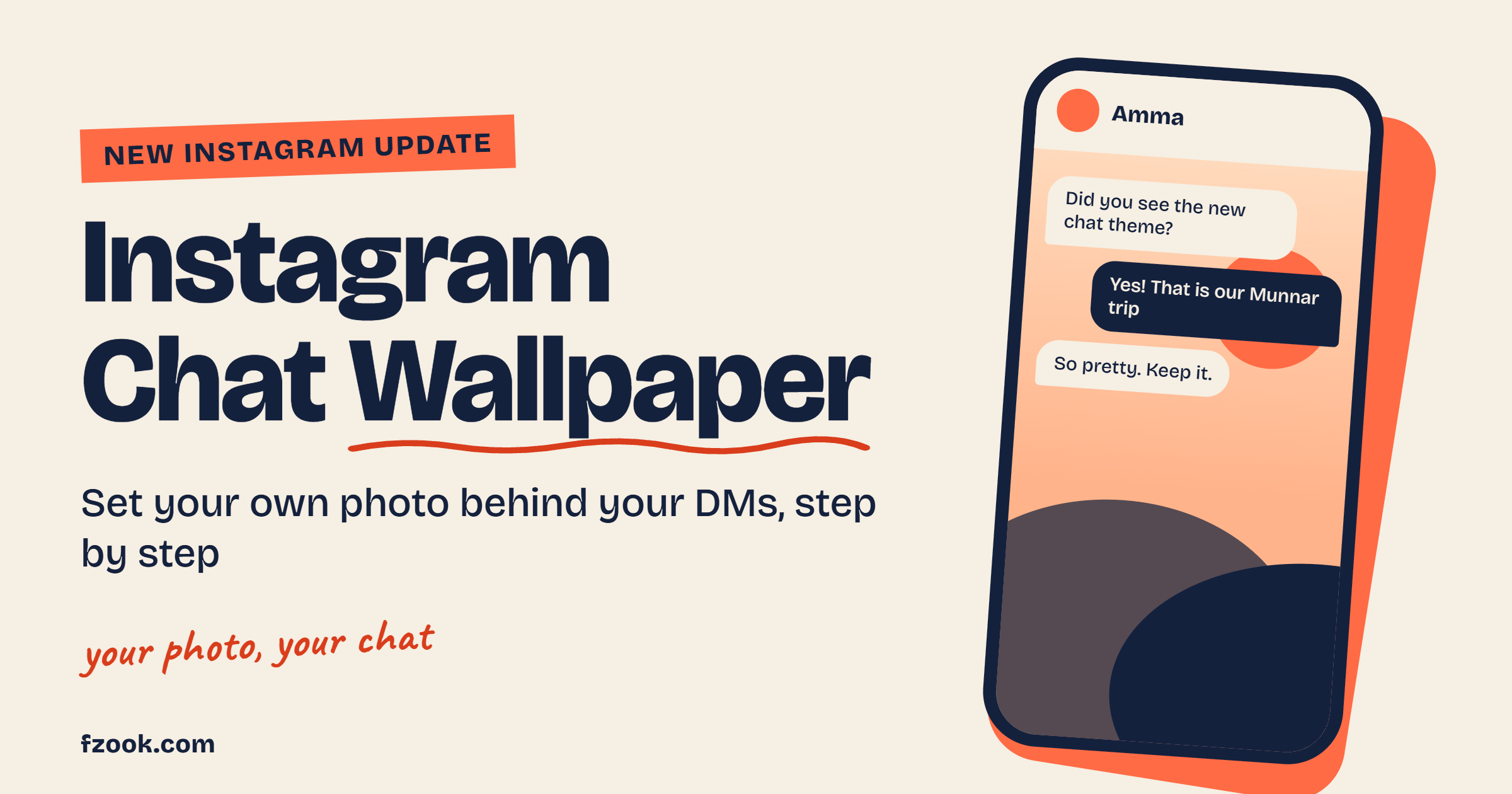
Until recently, Instagram chat customisation meant picking a ready-made theme. These were mostly colour gradients and a few designs, and in some regions there was also an option to describe a theme and let Meta AI generate one. Pretty, but never personal. You could not simply say “use that photo from our Munnar trip”.
Now a Theme → Upload path is being reported. Social media consultants were among the first to spot it, and a few of them posted the steps on Threads, describing it as a gradual rollout. Another marketing publication noted that if you do not see the upload button, your account probably has not received the feature yet. That is the honest position right now: it exists, it is spreading, and Instagram has not made it available to every account at the same time.
Menu names can change, so the labels on your phone may differ slightly from the ones below.
Why People Want This So Badly
It sounds like a small cosmetic thing, but there are real reasons people care.
It makes a chat feel like yours. A plain background is fine for office contacts. For a person you talk to every day, a photo that means something changes how the conversation feels. Couples tend to pick a trip picture or a wedding photo. Parents often get a family photo from a festival. Friends pick a funny group selfie that only they understand.
It helps you avoid sending a message to the wrong person. This one is underrated. If your sister’s chat has a blue beach photo and your boss’s chat has the default look, you will notice instantly when you are in the wrong thread. Anyone who has ever sent a “can’t wait for the weekend” message to the wrong conversation knows the value of that.
How to Set a Photo as Your Instagram Chat Wallpaper, Step by Step
Before you start
- Update Instagram. Open the Play Store or the App Store, search for Instagram, and tap Update if the button is there. New features usually land in the newest version first.
- Choose your photo in advance. Put it in your gallery and keep it easy to find, for example in a Favourites album. Scrolling through two thousand pictures while the upload screen is open is annoying.
- Know that this is per chat. The wallpaper applies to the conversation you are in, not to your whole inbox. If you want the same photo in five chats, you will repeat the steps five times.
The steps
Step 1: Open the conversation. Tap the paper-plane icon or the message icon on your home screen and open the chat you want to change. It can be a one-to-one chat or a group.
Step 2: Tap the name at the top. This opens the chat details screen. You will see options such as mute, search in conversation, and others, depending on your version.
Step 3: Tap Theme. This is the same menu where the ready-made colour themes live. You will see the usual list of themes.
Step 4: Look for the Upload option. If the feature has reached your account, there will be a way to add your own picture. It may appear as a tile at the start of the theme list or as a separate button. Tap it.
Step 5: Choose the photo. Select the picture you prepared earlier. Instagram will show a preview of how the chat will look.
Step 6: Check the preview carefully. Look at how the message bubbles sit on top of the image. Is the text readable? Is the face in the picture hidden behind a bubble? This is the moment to go back and choose a different picture or adjust it, rather than after you have applied it.
Step 7: Apply it. Tap Set, Apply or Done. The chat background should update straight away.
Now go back to the conversation and send a message to see how it looks in real use.
Going back to normal
To remove the photo, open the same Theme menu and select one of Instagram’s default themes. Your photo goes away from that chat. Your original picture stays untouched in your gallery.
Which Photos Look Good as a Chat Wallpaper?
Not every beautiful picture makes a good wallpaper. Text sits on top of it all day, so the image has to work with the conversation, not fight it.
- Pick portrait-oriented photos. Phones are held vertically. A tall picture fills the screen without awkward cropping.
- Choose calm backgrounds. Skies, sea, hills, temple corridors, soft indoor light. Busy photos with many small details make messages hard to read.
- Avoid pictures with the main face in the middle. The centre of the screen is where message bubbles pile up. A photo where the people stand slightly to the top or the side usually works better.
- Check brightness. Very bright photos can make white text hard to read, and very dark ones can swallow dark text. If you use dark mode, a darker image is usually more comfortable at night.
A small tip that many people like: use a different photo for each important chat. One for your partner, one for your parents, one for your closest friends. It becomes a quiet way of knowing who you are talking to.
Not Seeing the Upload Option? Here Is What to Check
If you followed the steps and the Theme menu only shows the usual ready-made themes, you are not doing anything wrong. In most cases it is simply the rollout. Still, a few checks cost nothing:
- Update the app. Check for a newer version in your app store, even if you updated last week.
- Close and reopen Instagram. Fully close the app from your recent apps list, then open it again. Some features show up only after a restart.
- Check another chat. Open a different conversation and look at its Theme menu. Occasionally the layout is different in one-to-one chats and group chats.
- Check again after a few days. Staged rollouts can take a while. The feature can appear without any notification.
- Report your interest in feedback. If you would like the feature, you can send feedback through Instagram’s settings or the Instagram Help Center. It will not switch it on instantly, but it is the proper channel.
What you should not do
Some websites and videos will tell you to install a modified Instagram app, a “plus” version, or an unknown tool that claims to switch on hidden features. Please stay away from these. They are not made by Instagram, they ask you to log in with your password, and accounts that use them can be restricted or hacked. A wallpaper is not worth your account. If the option is not available to you yet, wait for the official rollout.
A Few Privacy Points Before You Pick That Photo
A wallpaper feels private, but it deserves a second thought.
Think about who else can see it. Instagram theme changes generally apply to everyone in that chat, and a small notice usually appears in the conversation when someone changes a theme. Instagram has not spelled out every detail for custom photos yet, so assume the other person, or the whole group, may see what you choose. Do not use a picture you would not want them to see.
Ask before using someone else’s photo. If you are putting a picture of your friend, your partner or a relative as the background in a shared chat, a quick message first is polite. Some people simply do not like their pictures used in this way.
Be careful with children’s photos. A photo of a child as a wallpaper in a group chat with many people is something to think twice about, especially in large groups.
Keep sensitive pictures out of it. Documents, screenshots with personal details, or private photos should not be used as a wallpaper. Anyone looking over your shoulder in a bus or a train can read your screen.
Quick Answers
Is this feature available to everyone?
Not yet. It is reported to be rolling out gradually, so some accounts have it and many do not.
Do I need a special version of Instagram?
No special version. You only need the latest official version from the Play Store or the App Store. If the option still does not show, your account has probably not been included yet.
Will the other person know that I changed it?
Theme changes usually leave a small notice in the chat, so you should assume they will know.
Can I use a video or GIF as a wallpaper?
Based on what has been reported, the upload option is for photos. Video wallpapers have not been mentioned.
Is it safe to use apps that promise custom chat wallpapers?
No. Avoid third-party tools and modified apps. They are not connected with Instagram and can put your account at risk.
Important Note
Fzook is an independent website and is not affiliated with, endorsed by or sponsored by Instagram or Meta. Features, menu names and availability depend on your account, region and app version, and Instagram can change or remove them at any time. The steps above are based on public reports of the rollout, so what you see may differ slightly. For official information, refer to the Instagram Help Center.
Final Thoughts
Changing a chat background will not change your life, but it does make an everyday app feel a little more like your own space. A picture of your parents behind their chat, or an old trip photo behind a close friend’s conversation, is the sort of small detail that brings a smile when you open the app.
If the option is already on your phone, try it with one chat first and see how the preview looks before applying it to others. If it is not there yet, update the app, check again in a few days, and ignore anything that asks you to install unofficial tools. Instagram usually widens its rollouts over a few weeks, so patience tends to pay off.
Once you have set your first Instagram chat wallpaper, tell us which photo you picked in the comments. And if you enjoy tips like this, you will find more on exploring Instagram photos, Reels and Stories and on how to recover your Instagram account safely if you ever get locked out.