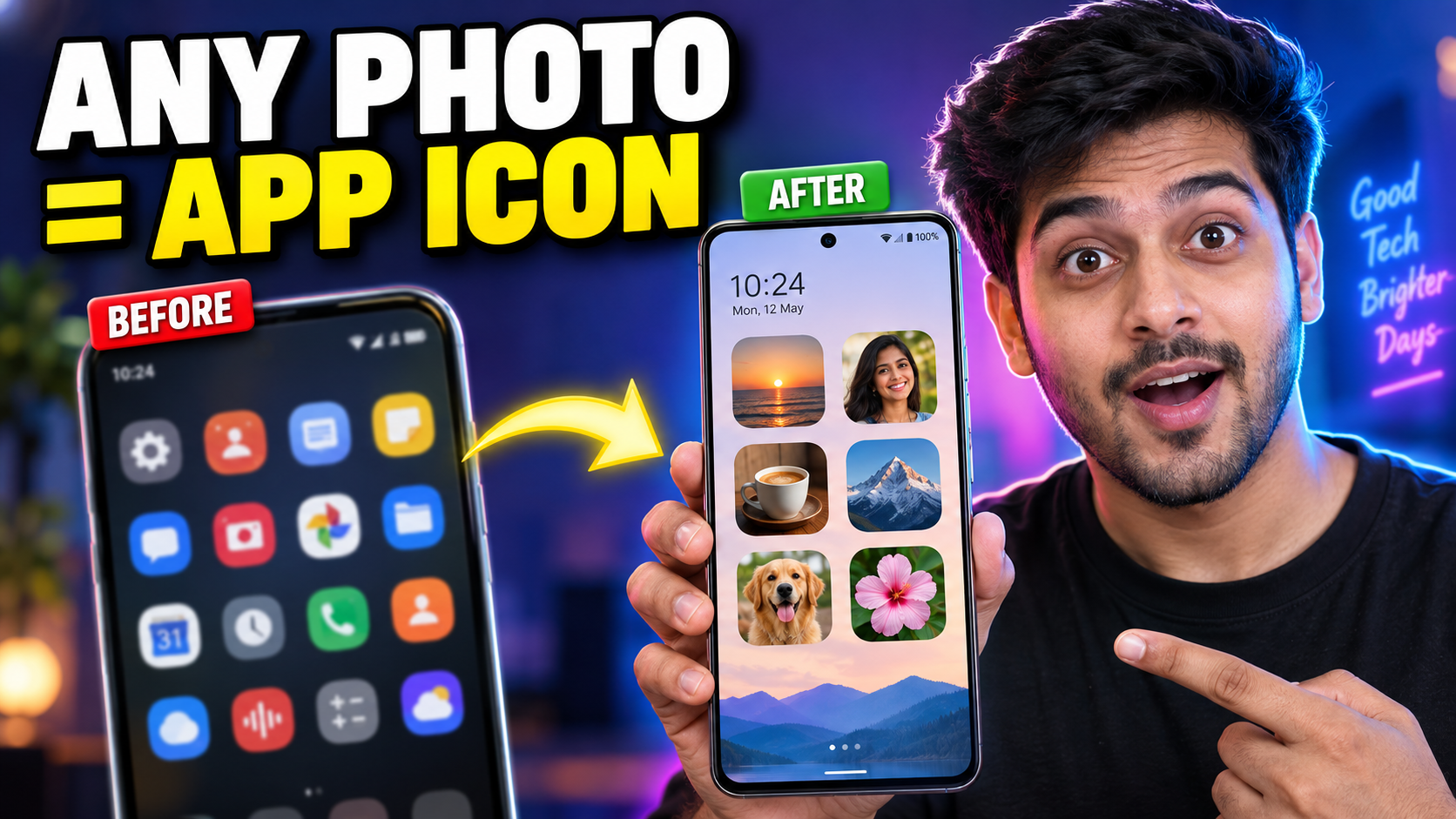
Most Android home screens start to look the same after a while. You get rows of colorful icons, a clock widget, maybe a search bar, and a wallpaper you barely get to see. If you have ever wanted your phone to feel more personal without installing a full custom launcher, Photo Actions: Change App Icon is worth a look.
The app lets you turn any photo from your gallery into a working shortcut. Tap the picture and it opens the app you linked to it. It can also create invisible shortcuts, one-tap flashlight buttons, speed-dial widgets for your favorite people, website shortcuts, and small text notes that sit on top of your wallpaper. In this review, we go through what each feature does, how the app handles privacy, what it costs, and who will actually get value from it.
What Is Photo Actions?
Photo Actions is a home screen customization app for Android made by CFY Apps, the studio of independent developer Shagun Verma. It sits in the Tools category on Google Play and has crossed one million downloads.
The idea is simple. Instead of changing the look of your apps through an icon pack or a launcher, Photo Actions creates widgets. Each widget shows an image of your choice and performs an action when you tap it. That action can be opening an app, switching on the torch, calling a contact, loading a website, or simply showing a line of text.
Because it works through standard Android widgets, you keep your existing launcher, your app drawer, and your current layout. You are only adding new elements on top of what you already have.
Key Features of Photo Actions
📸
Photo App Icons
Use any gallery image as a shortcut that opens the original app.
👻
Invisible Shortcuts
Set transparency to 100% and tap the empty space to launch an app.
🔦
One-Tap Flashlight
Turn the torch on and off right from your home screen.
📞
Direct Dial
Call your favorite contact with a single tap on their photo.
🌐
Website Shortcuts
Open the sites you visit every day in one tap.
📝
Text Notes
Pin short, transparent notes on top of your wallpaper.
1. Use Any Photo as an App Icon
This is the main reason most people download the app. You pick an app, choose an image from your gallery, and place the result on your home screen. The photo now works just like the app’s icon. Tap it and the original app opens.
You could put a photo of your partner on your WhatsApp shortcut, use a custom logo for Instagram, or give every social app a matching image so they blend into your wallpaper. The original app is not modified in any way. Photo Actions only creates a new shortcut that points to it, so updates and notifications for the real app keep working as normal.
2. Invisible App Shortcuts
Every widget comes with a transparency slider. Push it all the way to 100 percent and the widget disappears from view. The space looks empty, but tapping it still launches the app you selected.
This is popular with people who love a clean wallpaper and do not want icons sitting on top of it. You simply remember where your invisible shortcuts are, a bit like hidden buttons only you know about.
⚠️ Important to Know
An invisible shortcut is not an app lock. The app is still installed, still visible in your app drawer, and still searchable. Photo Actions only hides the shortcut on your home screen. For private chats or banking apps, use your phone’s built-in app lock or secure folder.
3. One-Tap Flashlight
Android already has a torch toggle in the quick settings panel, but that still means swiping down and finding the right tile. Photo Actions lets you place a flashlight widget directly on your home screen. You can give it a custom image or make it invisible, then switch the torch on and off with one tap. It is a small change, but it helps when you are searching for keys in the dark or walking outside at night.
4. Direct Dial for Favorite Contacts
The dialer widget calls a chosen contact as soon as you tap it. Set one up for your mother, your wife, your best friend, or anyone you call often, and use their photo as the button. It removes the usual steps of opening the dialer, searching, and tapping the number. It is also useful for older family members who find the phone app confusing, since they only need to tap a familiar face.
5. Website Shortcuts
If you open the same websites every day, the website launcher saves time. Add the address, choose an image, and the widget opens that page in your browser. Content creators, for example, can keep their channel dashboard, their own website, or an AI tool they use daily just one tap away, with an image that makes each shortcut easy to recognize.
6. Text Notes on Your Wallpaper
The text widget lets you pin a short note to your home screen. It can be a reminder, a goal, a quote, or a simple label for a group of invisible shortcuts. Since the background can be transparent, the text looks like part of the wallpaper itself.
7. An Aesthetic Home Screen Without a Heavy Launcher
Put all of these features together and you can build a themed, minimal home screen using only your own photos. Many people install full launchers for this kind of setup, which can take time to configure and may use more memory. Photo Actions takes a lighter approach. According to the developer, it is built on native Android widget APIs, so it works with the launcher you already use and should not slow down your phone or drain your battery.
How to Set Up Your First Photo Widget
- Install Photo Actions from the Google Play Store and open it.
- Choose what the widget should do: open an app, toggle the flashlight, call a contact, open a website, or show text.
- Select the app, contact, or website address you want to link.
- Pick an image using the Android photo picker.
- Adjust the transparency. Keep it low for a visible photo, or move it to 100 percent for an invisible shortcut.
- Add the widget to your home screen, then drag and resize it to the spot you want.
💡 Quick Tip
If the app cannot place the widget directly on your screen, long-press an empty area on your home screen, open Widgets, find Photo Actions, and add it from there. Some phones do not support direct widget placement, and this method works around it.
Privacy and Permissions
Customization apps often ask for wide access to your photos and files. Photo Actions avoids this by using the secure Android photo picker, which lets you share only the images you select. It does not need full storage permission.
The developer also states that your photos and your list of installed apps stay on your device. That said, the Google Play data safety section mentions that some data, such as device identifiers and app activity, may be collected or shared. This is common in free apps that show ads and offer in-app purchases, but it is a good idea to read that section yourself before installing.
Pricing: Free With Ads, One-Time Pro Unlock
Photo Actions is free to download. In the free version, you watch one short ad each time you add a widget. Since most people set up their widgets once and leave them alone, this feels less intrusive than apps that show ads all the time.
If you want to remove ads completely, there is a one-time lifetime Pro unlock. There is no monthly or yearly subscription, which is refreshing when even simple tools now ask for recurring payments. The price can differ by country, so check the in-app purchase screen for the exact amount in your currency.
✅ What We Like
- Any photo can become a working app shortcut
- Invisible shortcuts keep your wallpaper clean
- Flashlight, dialer, website, and text widgets in one app
- No broad storage permission needed
- Works with your current launcher
- One-time purchase, no subscription
❌ What Could Be Better
- Invisible shortcuts do not lock or hide the real app
- Free version shows an ad each time you add a widget
- Some phones need widgets added manually
- Widget look can vary between launchers and screen sizes
Who Should Use Photo Actions?
Photo Actions is a good fit if you want a personal, aesthetic home screen without switching launchers. It also suits people who open the same apps and websites many times a day and want faster access. Families can use the direct dial widget to make calling easier for elderly parents, and anyone who loves a clean, icon-free wallpaper will enjoy the invisible shortcuts.
It is less suitable if you want a full theming system with icon packs, gestures, and app drawer changes. In that case, a dedicated launcher will give you more control. Photo Actions is best seen as a simple add-on that improves the home screen you already have.
Conclusion
OUR RATING
4.3 / 5
Simple, lightweight, and genuinely useful for home screen customization. Best for users who want photo icons and quick shortcuts without a heavy launcher.
Photo Actions does one thing and does it well. It turns your photos into working shortcuts and adds a few practical extras like a one-tap torch, direct calling, and website launchers. The privacy-friendly photo picker, lightweight native widgets, and one-time pricing make it easy to recommend.
Just remember that invisible shortcuts are about looks, not security. If you go in expecting a customization tool rather than an app locker, Photo Actions is one of the easiest ways to make your Android home screen feel truly your own.