
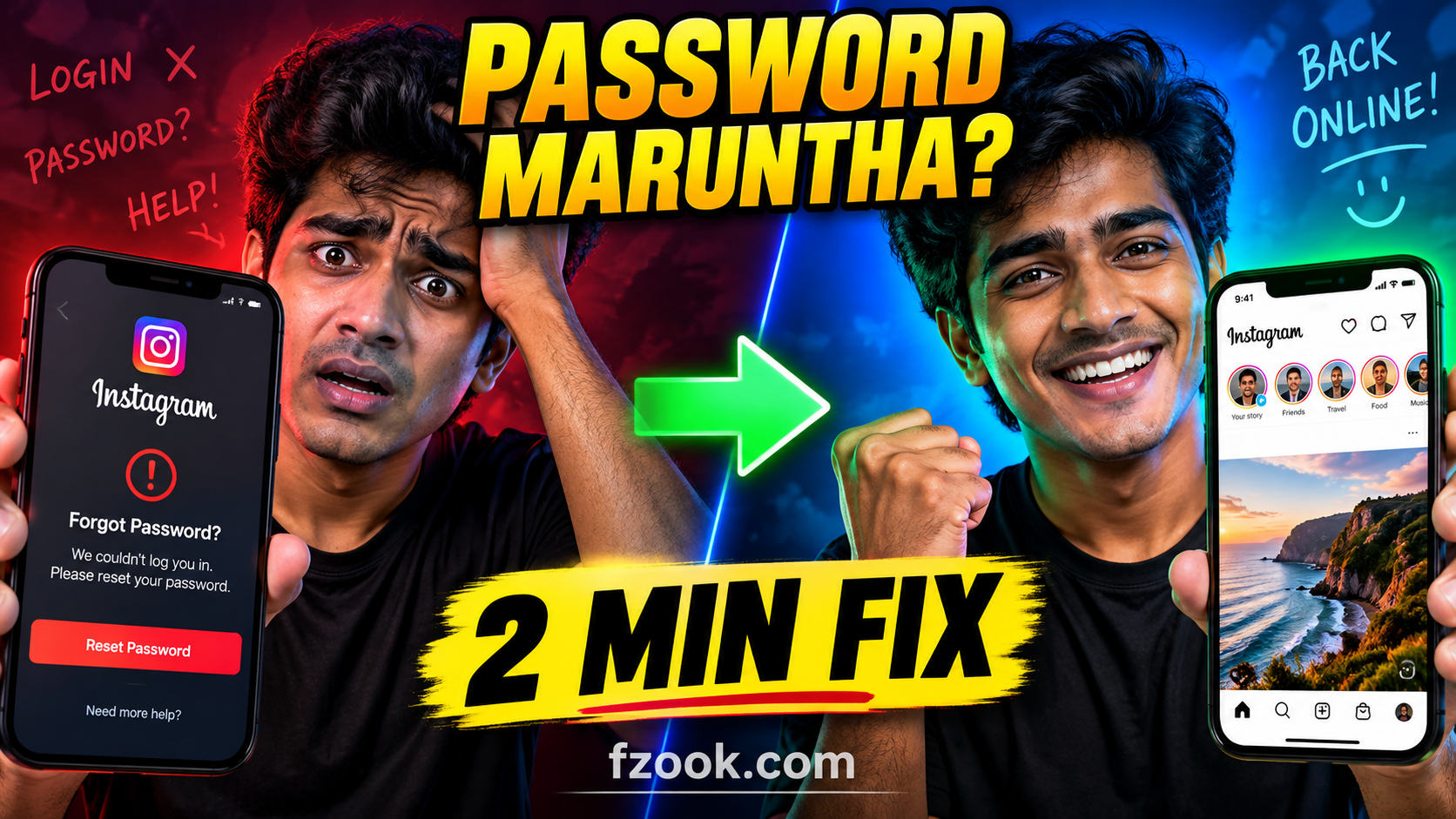
There’s that sinking feeling again. You tap your Instagram app, ready to scroll through your feed, and — nothing. Wrong password. Account locked. Or maybe you simply don’t remember the email you signed up with years ago. Before you panic and start creating a new account from scratch, take a breath. Instagram has built-in recovery options, and if you follow the steps below, you can start the recovery process. The time needed and outcome depend on your account and Instagram’s verification requirements.
Why Can’t You Log Into Instagram?
Before jumping into solutions, it helps to understand what’s actually going on. The most common reasons people get locked out include:
- Forgotten password — You haven’t logged in for months and genuinely don’t remember it
- Changed password on another device — Someone (or you, on a different phone) changed it and you’re still typing the old one
- Account disabled by Instagram — This happens when the platform detects a violation of community guidelines
- Hacked account — Someone changed your password and locked you out
- Deleted the app and reinstalled — Your saved login was wiped during the reinstall
Each of these has a different fix, and we’ll cover all of them below.
Method 1: Recover Password Through the Instagram App
This is the fastest and most common method. Open the app and follow these steps:
Step 1: On the login screen, tap “Forgot password?” link. It’s right below the password field — easy to miss if you’re in a hurry, but it’s there.
Step 2: Enter your username, registered email address, or phone number. The service will search for your account using whichever information you provide. If you’re not sure about your username, try your email or phone — the platform matches them all to your account internally.
Step 3: Tap “Send Login Link”. You will receive a password reset link to the email or phone number associated with your account. If you still have access to that email or phone, you’re almost done.
Step 4: Open the email or SMS you received. The link typically expires within 24 hours, so don’t wait too long. Tap the link, and the page will prompt you to create a new password.
Step 5: Enter your new password twice to confirm, then tap “Reset Password”. After that, open the app, enter the new password, and you’re back in.
Method 2: Recover Password Through a Web Browser
If the app isn’t working for some reason — maybe you deleted it, or the app is behaving strangely — you can do the exact same process from a desktop browser. Here’s how:
Step 1: Go to instagram.com on any browser (Chrome, Firefox, Safari, Edge — doesn’t matter). Click “Forgot password?” below the login fields.
Step 2: Type in your username, email, or phone number. The site will look up your account and send a reset link to whatever contact method is on file.
Step 3: Check your email inbox (and spam folder — seriously, check spam). Click the reset link, set a new password, and log back in.
The browser method is identical to the app method in terms of results. The only difference is the interface. Use whichever is more convenient for you.
Method 3: If You Don’t Remember Your Username or Email
This is the trickier scenario. Maybe you created your account years ago with an old email you no longer use. Here’s what you can try:
Try your phone number first. Even if you’ve forgotten your email, your phone number is still linked to the account. Enter your mobile number on the “Forgot password” screen and you can request a reset code via SMS.
Use your Facebook account. If you originally linked your Instagram to Facebook, you can log in through the “Log in with Facebook” option on the login screen. Once you’re in, go to Settings and update your email and password immediately.
Check your email accounts. Search for emails from “instagram.com” or “mail.instagram.com” across all your email accounts — Gmail, Yahoo, Outlook, whatever you might have used back then. Finding the original welcome email will give you the username and registered email.
Ask friends or family. If your account is linked to other people’s accounts (like a shared business account), someone you work with might still have admin access to help you recover it.
What If Your Account Was Hacked?
If someone else changed your password and you can’t access the recovery email or phone, things get more complicated, but there’s still hope. Instagram has a dedicated hacked account recovery flow:
Step 1: Go to instagram.com/hacked on a browser or open the Instagram app and tap “Get help logging in” on the login screen.
Step 2: Enter the username, email, or phone number linked to your account. The platform will look for accounts that might have been compromised.
Step 3: If the platform finds your account, it will ask you to confirm your identity. This might involve sending a code to your phone or email. If you no longer have access to those, you may need to submit a government-issued ID for verification.
Step 4: Once verified, The recovery flow will guide you through securing your account — changing the password, reviewing active sessions, and checking for unauthorized changes.
The key here is acting fast. The sooner you report a hacked account, the more likely you are to get it back before the hacker does more damage.
What If Instagram Disabled Your Account?
This is different from a forgotten password. If Instagram disabled your account, you’ll see a message saying your account was removed for violating community guidelines. In this case, the “Forgot password” flow won’t help — your account isn’t locked, it’s disabled.
Here’s what to do:
File an appeal. Go to the login screen, enter your username and password, and you should see an option to “Learn more“ about why your account was disabled. From there, you can request a review by filling out a form. The support team will review your account and, if they determine the disabling was a mistake, they’ll restore it.
Be patient. Appeals can take anywhere from a few hours to a few days. Don’t submit multiple appeals — it won’t speed things up and might actually make it worse.
Review Instagram’s guidelines. While you wait, read through Instagram’s Community Guidelines and Terms of Service. Understanding what got your account disabled helps you avoid the same issue if it gets reinstated.
Prevent Future Lockouts: Tips Worth Following
Getting back into your account is one thing. Never getting locked out in the first place is better. Here are a few habits that will save you a lot of trouble:
Use a password manager. Apps like 1Password, Bitwarden, or even your phone’s built-in password manager will store your Instagram password securely. You’ll never have to remember it again, and you won’t accidentally lock yourself out after a password change.
Keep your recovery information updated. Go to Settings → Account → Personal Details and make sure your email and phone number are current. If you change either of those, update it in Instagram immediately. This is the single most important thing you can do to protect your account.
Enable two-factor authentication. In Settings → Accounts Center → Password and Security, turn on two-factor authentication. Even if someone gets your password, they won’t be able to log in without the second verification step.
Avoid saving passwords on public devices. If you log into Instagram on a friend’s phone or a public computer, make sure you log out completely afterward. Don’t save your password on browsers you don’t control.
Link your Facebook account. Having Facebook as a backup login method gives you another way into your account if everything else fails. It’s not foolproof, but it adds one more safety net.
Common Myths About Instagram Account Recovery
There’s a lot of misinformation floating around about recovering Instagram accounts. Let’s clear up a few common misconceptions:
“Instagram can unlock your account instantly.” Not always. Automated systems handle most password recovery, and those work instantly. But for hacked or disabled accounts, manual review is required, and that takes time.
“You can recover an account without any proof.” No. Instagram requires some form of verification — either access to the recovery email/phone or government ID. There’s no backdoor, and anyone claiming otherwise is probably trying to scam you.
“Creating a new account is easier than recovering the old one.” It might seem that way, but starting from zero means losing all your followers, posts, stories, and any monetization or brand deals tied to your account. Recovery is always worth attempting first.
Recover Your Own Instagram Account
Use Instagram’s official password reset page to request a recovery link. Fzook cannot view, generate or recover your Instagram password and is not affiliated with Instagram or Meta. Recovery depends on Instagram’s verification process; access and timing are not guaranteed.
Enter your account details only on Instagram’s official website or app.
Final Thoughts
Getting locked out of your Instagram account is frustrating, but it’s almost always recoverable. The “Forgot password” feature works reliably for the vast majority of cases — the key is having access to the email or phone number you registered with. If you’ve lost access to both, patience and identity verification are your best tools.
The best defense, though, is prevention. Keep your recovery info updated, use a password manager, and turn on two-factor authentication. These small habits take two minutes to set up and can save you hours of stress later.
If you’ve tried all the steps above and still can’t access your account, your next move is Instagram’s official Help Center at help.instagram.com. They have additional forms for account recovery, and while response times vary, they do review every case.
And if you do get back in — change your password to something strong and unique, check your login activity for any unfamiliar devices, and make sure your recovery options are current. Because the last thing you want is to go through this again six months from now.





2 thoughts on “Forgot Your Instagram Password? How to Recover Your Account Safely in 2026”