The WhatsApp video call new features released in 2026 have quietly changed the way we make video calls, and most people have not even noticed. You can now join a call from a laptop browser without installing anything, invite someone who does not even have a WhatsApp account, and move a running call from your phone to your computer without hanging up. On top of that, a fun new sticker format has just started arriving that plays a sound when you tap it.
In this guide, we break down the WhatsApp video call new features that matter in 2026, show you how to use each one step by step, and then explain the new sound stickers that are now rolling out. If you use WhatsApp for family calls, online classes or quick work meetings, these changes are worth knowing.
WhatsApp video call new features in 30 seconds
- Audio and video calls now work directly on WhatsApp Web, with no desktop app needed.
- You can invite people without a WhatsApp account to a call through a guest link.
- Hosts get a waiting room to approve who joins.
- Group calls can move between your phone and computer without dropping.
- QuickHD gives sharp video from the first few seconds, and noise suppression cleans up your voice.
- Sound stickers let you send stickers that play audio when tapped.
WhatsApp video call new features: 7 upgrades you should know
Most of these WhatsApp video call new features were announced on the official WhatsApp blog between July and October 2026 and are rolling out in stages. If you do not see one yet, it will usually reach your account within a few weeks after an app update.
1. Video calls straight from WhatsApp Web
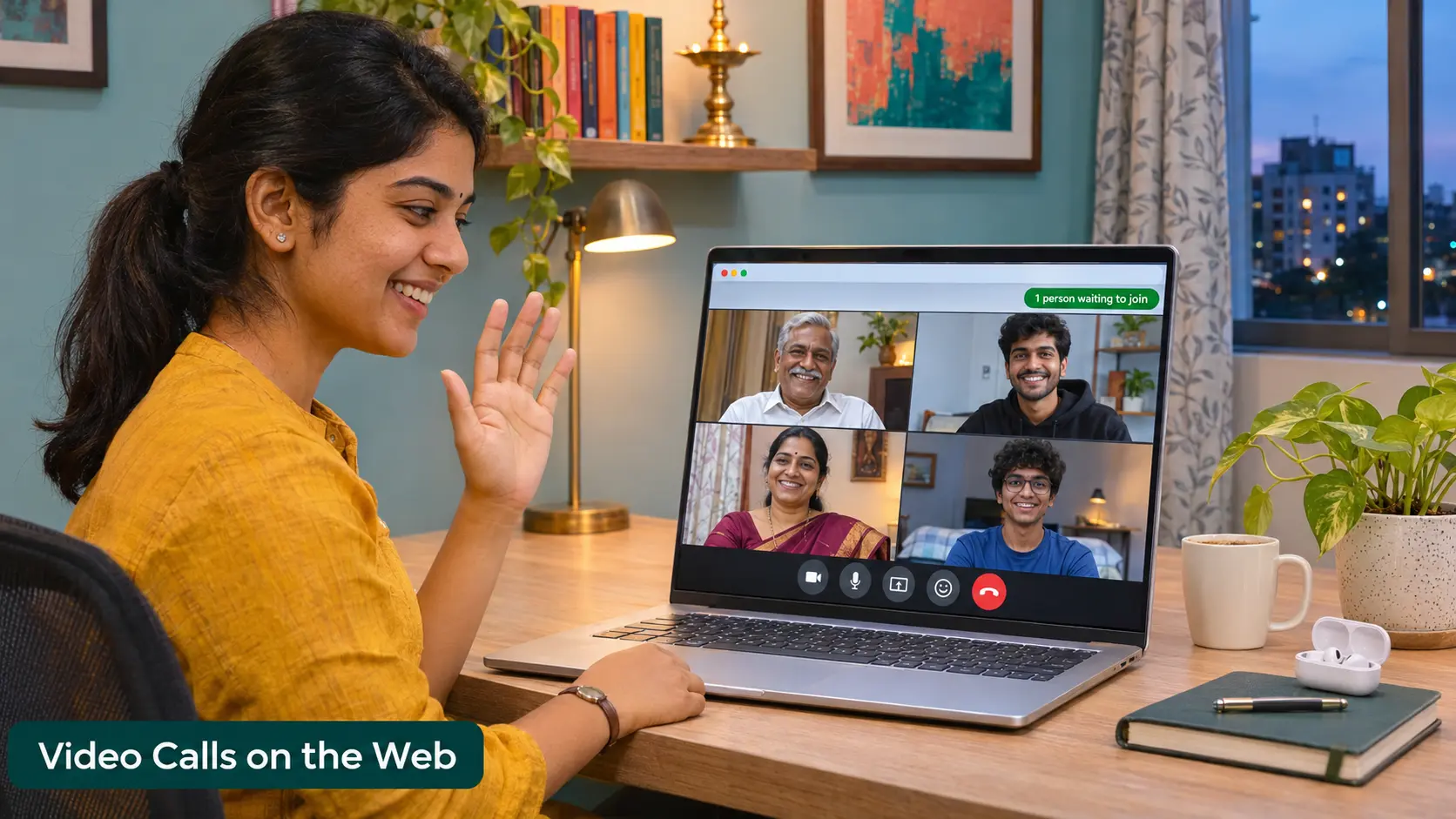
Among all the WhatsApp video call new features, this is the biggest change of the year. Earlier, if you wanted to make a WhatsApp video call from a computer, you had to download and install the desktop app on Windows or Mac. Now you can make and receive both one-on-one and group audio and video calls directly inside WhatsApp Web, right in your browser.
Web calls are not a stripped-down version either. They include screen sharing, reactions and a proper Calls tab that shows your call history and favourites. Calls stay end-to-end encrypted, there is no time limit, and there is no extra charge.
This is a big help for people who use office laptops where installing software is blocked. Just open the browser, link your phone and call.
2. Invite anyone with a guest call link
In October 2026, the WhatsApp video call new features went one step further and allowed people without a WhatsApp account to join calls. You create a call link, share it, and the other person can join from a computer browser as a guest. These guest calls are free, end-to-end encrypted, and have no time limit, and a call can hold up to 32 people once they are admitted.
This is useful when a client, a teacher or a relative living abroad does not use WhatsApp. Earlier you had to switch to a separate meeting app. Now you can send one link and stay on WhatsApp.
Guests get screen sharing, simple reactions and a raise hand option. Only WhatsApp users can create the link, though.
3. Waiting room and host controls
Open call links can be risky if they get forwarded to the wrong people. To solve this, the WhatsApp video call new features include a waiting room. When you create a call link with “Require approval to join” switched on, everyone who opens the link waits outside until you let them in.
For guest calls, the host stays in control the whole time. Guests always need approval, the host can remove them at any time, and guests cannot see other people’s phone numbers, send messages, or add anyone else to the call. For anyone running online tuition, small team meetings or customer calls, this privacy layer makes WhatsApp much safer to use.
4. Move a call from phone to laptop without hanging up
We have all been there. You start a group call on your phone while walking, then sit down at your desk and wish you could switch to the bigger screen. With the new call transfer option, you can move an active group call from your mobile or tablet to WhatsApp Web or Desktop, and back again, without cutting the call.
Among the WhatsApp video call new features, this one saves the awkward “let me call you back from my laptop” moment.
5. QuickHD for sharp video from the first second
Have you noticed how video calls often look blurry for the first few seconds before the quality improves? One of the smartest WhatsApp video call new features, called QuickHD, fixes this. It brings high-definition video within the first few seconds of a call, so the other person sees you clearly almost immediately.
Final quality still depends on your internet speed.
6. Noise suppression for clearer voice
Calling from a busy road, a noisy office or a house full of relatives is less painful with the WhatsApp video call new features. The new noise suppression feature reduces background noise so your voice comes through more clearly, even in loud places. You can switch it on or off whenever you want from the in-call settings.
Turn it off only when you are sharing music or audio on purpose.
7. Calendar integration is on the way
The next of the WhatsApp video call new features is calendar integration, announced for later this year. Once it arrives, you will be able to add WhatsApp call links to Google or Outlook calendar invites through a WhatsApp plugin. For anyone who schedules meetings, this will make WhatsApp work more like a regular meeting tool, with the link sitting right inside the invite.
Old vs new: WhatsApp video call new features compared
| Feature | Before | Now |
| Calling from a computer | Desktop app required | Works in the browser on WhatsApp Web |
| People without WhatsApp | Could not join | Join as guests through a link |
| Who joins a link call | Anyone with the link | Optional waiting room with host approval |
| Switching devices | Hang up and call again | Transfer a group call without dropping |
| Video at call start | Blurry for a few seconds | HD almost immediately with QuickHD |
| Background noise | No built-in filter | Noise suppression you can toggle |
How to make a WhatsApp video call from your browser
Once the web calling update reaches your account, using these WhatsApp video call new features from a computer is simple:
- Open WhatsApp Web in Chrome, Edge or another modern browser on your computer.
- On your phone, open WhatsApp, go to Linked devices, and scan the QR code shown on the screen.
- Open the chat or group you want to call.
- Click the call icon at the top of the chat and choose video call.
- When the browser asks for camera and microphone permission, click Allow.
You can also open the Calls tab on WhatsApp Web to see recent calls and use the WhatsApp video call new features with one click.
How to create a guest call link with approval
- Open WhatsApp on your phone and go to the Calls tab.
- Tap the + icon and choose the option to create a call link.
- Pick video call and turn on “Require approval to join” for extra safety.
- Share the link through SMS, email or any messaging app.
- When people open the link, you will see them in the waiting room. Approve the ones you know.
Approve only names you recognise. Since guests cannot see phone numbers, the WhatsApp video call new features keep your contact details private.
Are the WhatsApp video call new features good enough for work meetings?
For many small businesses, freelancers and teachers, the honest answer is yes, thanks to the WhatsApp video call new features added this year. A free, encrypted video call with no time limit, room for up to 32 people, screen sharing, a waiting room and guest access covers most daily needs, such as client check-ins, team stand-ups, online tuition and interviews.
Dedicated meeting platforms still have the edge for very large webinars, recordings, breakout rooms and detailed admin controls. But if your meetings are small and your clients already use WhatsApp, you may not need a paid meeting subscription at all.
A few practical tips to get the most from the WhatsApp video call new features:
- Use Wi-Fi for long calls. HD video uses a fair amount of mobile data. If you are on a limited plan, turn on “Use less data for calls” under Settings, then Storage and data.
- Keep the app updated. New calling features only appear on the latest version.
- Use headphones. Even with noise suppression, earphones reduce echo for everyone.
- Light your face from the front. A window or lamp in front of you makes QuickHD video look much better.
The WhatsApp video call new features also bring a small safety touch for calls from unknown numbers. On Android, when a non-contact calls you, you can see extra details such as whether the number is from another country and whether you share any groups. This helps you decide whether to pick up.
WhatsApp sound stickers: stickers that talk back
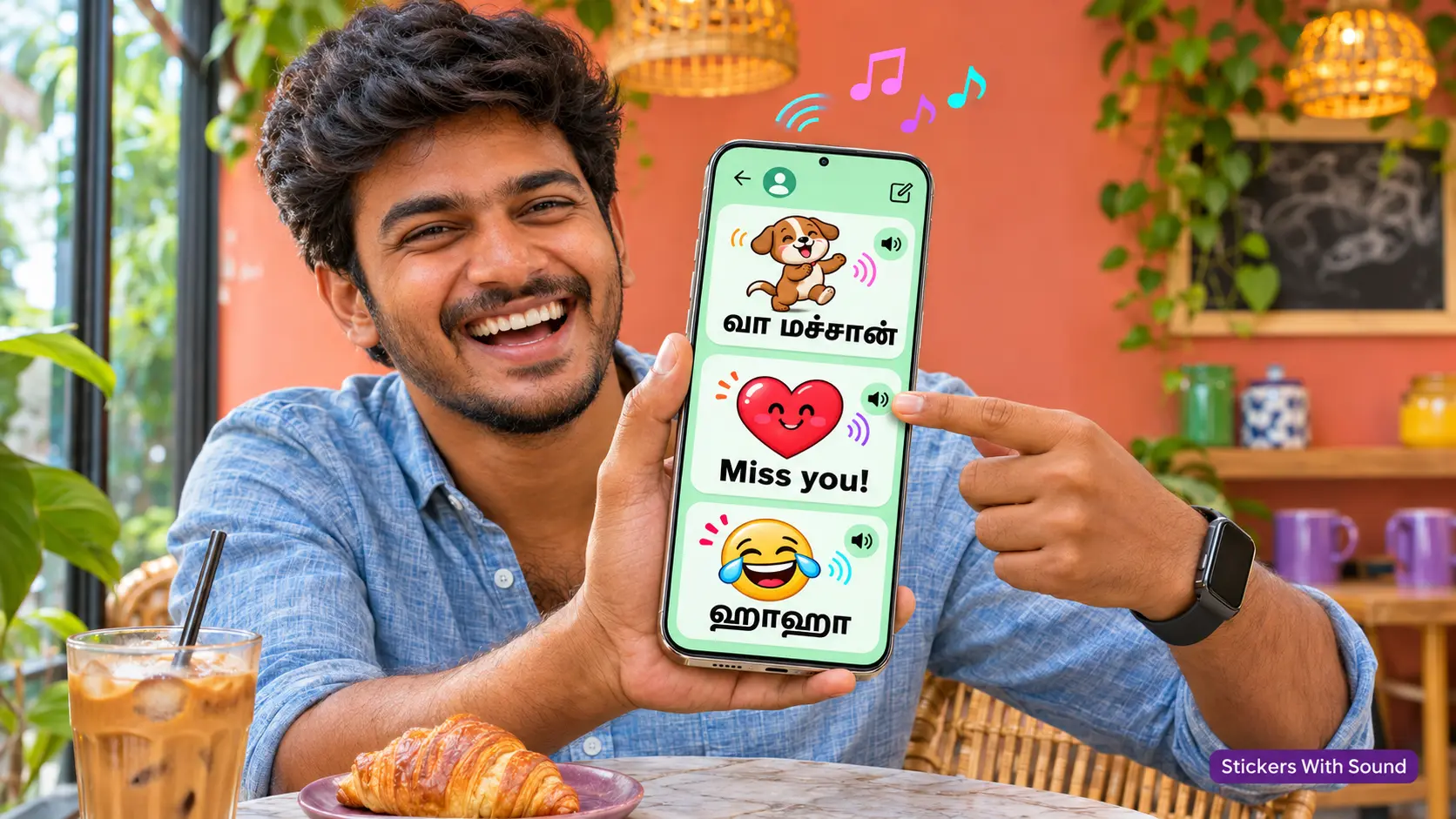
Beyond the WhatsApp video call new features, there is a fun update too. Stickers on WhatsApp have always been silent, whether static or animated. The new sound stickers change that. They combine an animation with an audio track, and the sticker plays its sound when the person receiving it taps on it.
Reports say these audio stickers started appearing for users on November 24, 2026, on mobile and on the web. The option to create your own is still reaching accounts gradually, so some people can already receive and play them before they can make one.
How sound stickers play in a chat
A sound sticker looks like a normal animated sticker, with a small audio icon on it. The sound is muted by default, so it never blasts out on its own in a quiet office or a classroom. The receiver has to tap the icon to hear it, and once played, the audio loops three times and then stops.
Like your messages and calls, both the sticker and its audio are protected with end-to-end encryption.
How to create your own sound sticker
Making one is simple once the feature is live on your phone:
- Open any chat and tap the sticker icon to open the sticker keyboard.
- Tap Create sticker and choose a short video from your gallery. WhatsApp turns it into an animated sticker automatically.
- In the sticker editor, tap the new audio button at the top.
- On the Add sound screen, choose the sound you want to attach.
- Preview it, then send it or save it for later.
You get four choices for the sound. You can keep the original audio from the video, pick a ready-made effect from the built-in sound collection, import an audio file from your phone, or record a fresh voice note.
Fun ways to use sound stickers
- Record a short “Happy birthday!” in your own voice and send it as a sticker.
- Turn a funny family video moment into a reusable laughing sticker.
- Use a quick “On my way” or “Call me” voice clip for daily replies.
Use your own recordings or sounds you have permission to share, and avoid using other people’s voices without asking.
Why you may not see these features yet
WhatsApp rarely switches on the WhatsApp video call new features or sound stickers for everyone on the same day. It usually tests them with beta users first and then releases them in waves. Sound stickers, for example, began reaching more users through the Android beta, and WhatsApp has not announced a date for everyone to get them.
If you are missing any of the WhatsApp video call new features or the sound sticker option, try these steps:
- Update WhatsApp from the Google Play Store or Apple App Store.
- Restart the app after updating.
- Check again after a few days, because server-side rollouts can take time.
- For web calling, refresh WhatsApp Web or log out and link your device again.
Want more WhatsApp tricks? Read our simple guide on WhatsApp view once text messages, and browse the latest updates in our Tech News section.
Which update will you use first?
Put together, these WhatsApp video call new features make the app feel far more like a complete meeting tool than a simple calling button. Browser calls, guest links, a waiting room, call transfer, QuickHD and noise suppression solve real everyday problems, from the office laptop that blocks downloads to the client who refuses to install another app.
Sound stickers, on the other hand, are pure fun. They add voice and personality to chats in a way that plain stickers never could, and because they stay muted until tapped, they will not embarrass you in a quiet room.
Update your app, try the WhatsApp video call new features this week, and make your first sound sticker as soon as it shows up. If you know someone who still installs the desktop app just to make a call, share this guide with them.
Note: fzook.com is an independent tech information website and is not connected to WhatsApp or Meta. Features roll out gradually and may differ by region, device and app version.